

Adobe Photoshop has been the industry standard for photo editing for decades—but its $54.99/month subscription makes it unaffordable for many creators, students, and small businesses.
The good news? 2026 brings powerful free alternatives that rival Photoshop's capabilities, especially with the integration of cutting-edge AI photo editing tools. From AI background removers to intelligent image upscalers, modern free photo editors offer features that were impossible just a few years ago.
According to Statista's 2025 Creative Software Report, 62% of digital creators now use free alternatives to Adobe products, with 78% citing AI-powered features as a primary decision factor.
But with dozens of options available, which free AI photo editor is right for you? Should you choose a cloud-based tool or desktop software? Which offers the best AI features without hidden costs?
In this comprehensive guide, you'll discover:
- The 10 best free AI photo editors that compete with Photoshop
- Key AI features: background removal, upscaling, smart editing
- Comparison of desktop vs. cloud-based solutions
- Which tools work best for specific use cases
- How to choose the right alternative for your needs
Let's explore the best Photoshop alternatives that combine professional editing power with advanced AI capabilities—all completely free.
What Makes a Great AI Photo Editor in 2026?
Definition: An AI photo editor is a software application that uses artificial intelligence and machine learning to automate complex editing tasks like background removal, object selection, image enhancement, upscaling, and style transfer—enabling professional results without advanced technical skills.
Traditional photo editors require manual selection, masking, and adjustment. Modern AI image editors analyze your photos intelligently and perform edits in seconds that would take hours manually.
Essential features for 2026:
- AI Background Remover: One-click subject isolation
- AI Image Upscaler: Enhance resolution without quality loss
- Smart Selection Tools: Intelligent object and subject detection
- AI Enhancement: Automatic color correction and lighting optimization
- Layer Support: Non-destructive editing capabilities
- RAW File Support: Professional photographer compatibility
- PSD Compatibility: Import/export Photoshop files
Industry Insight: According to Adobe's 2025 Creative Trends Report, 84% of professional editors now use AI-powered tools daily, with background removal and upscaling being the most-used features.
The 10 Best Free AI Photo Editors in 2026
1. PiCrafts - Best All-in-One AI Photo Editor
Platform: Web-based Best For: Creators needing comprehensive AI tools in one platform AI Features: AI Image Generator, AI Background Remover, AI Image Upscaler, AI Hair Color Changer, AI Face Swap
PiCrafts leads the 2026 landscape by offering multiple AI-powered photo editing tools in a unified platform. Unlike traditional photo editors that require manual work, PiCrafts automates complex tasks through specialized AI tools.
Key Features:
- AI Image Generator: Create custom images from text descriptions
- AI Background Remover: One-click background removal with edge refinement
- AI Image Upscaler: Enhance resolution up to 4x without quality loss
- AI Hair Color Changer: Preview hair colors realistically before dyeing
- AI Face Swap: Seamless face replacement for creative projects
- Web-Based: No installation required, works on any device
- Commercial Licensing: Use generated/edited images for business
Why Choose PiCrafts:
- Complete AI toolset without switching platforms
- Free credits to start, affordable credit-based pricing
- No subscription lock-in
- Professional-quality AI processing
- Regular AI model updates
Limitations:
- Requires internet connection
- Credit-based pricing (not unlimited free tier)
Best Use Cases:
- Content creators needing variety of AI tools
- E-commerce product photo editing
- Social media marketing visuals
- Portrait enhancement and creative edits
User Review: "PiCrafts replaced three different AI tools I was paying for. The background remover alone is worth it—perfect edges every time." — Sarah M., Content Creator
Get Started: Sign up at PiCrafts and receive 10 free credits to try all AI tools.
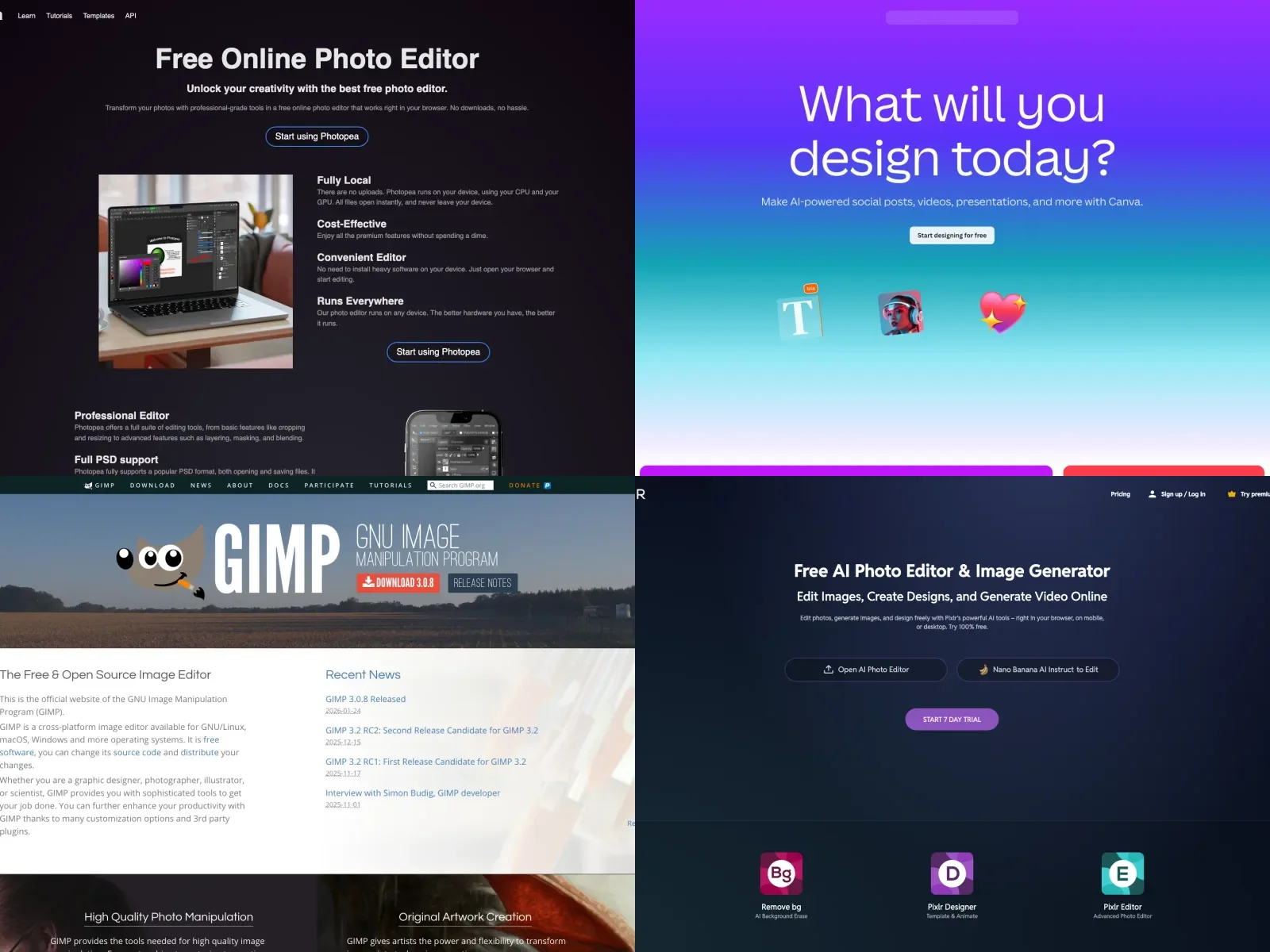
2. Photopea - Best Browser-Based Photoshop Alternative
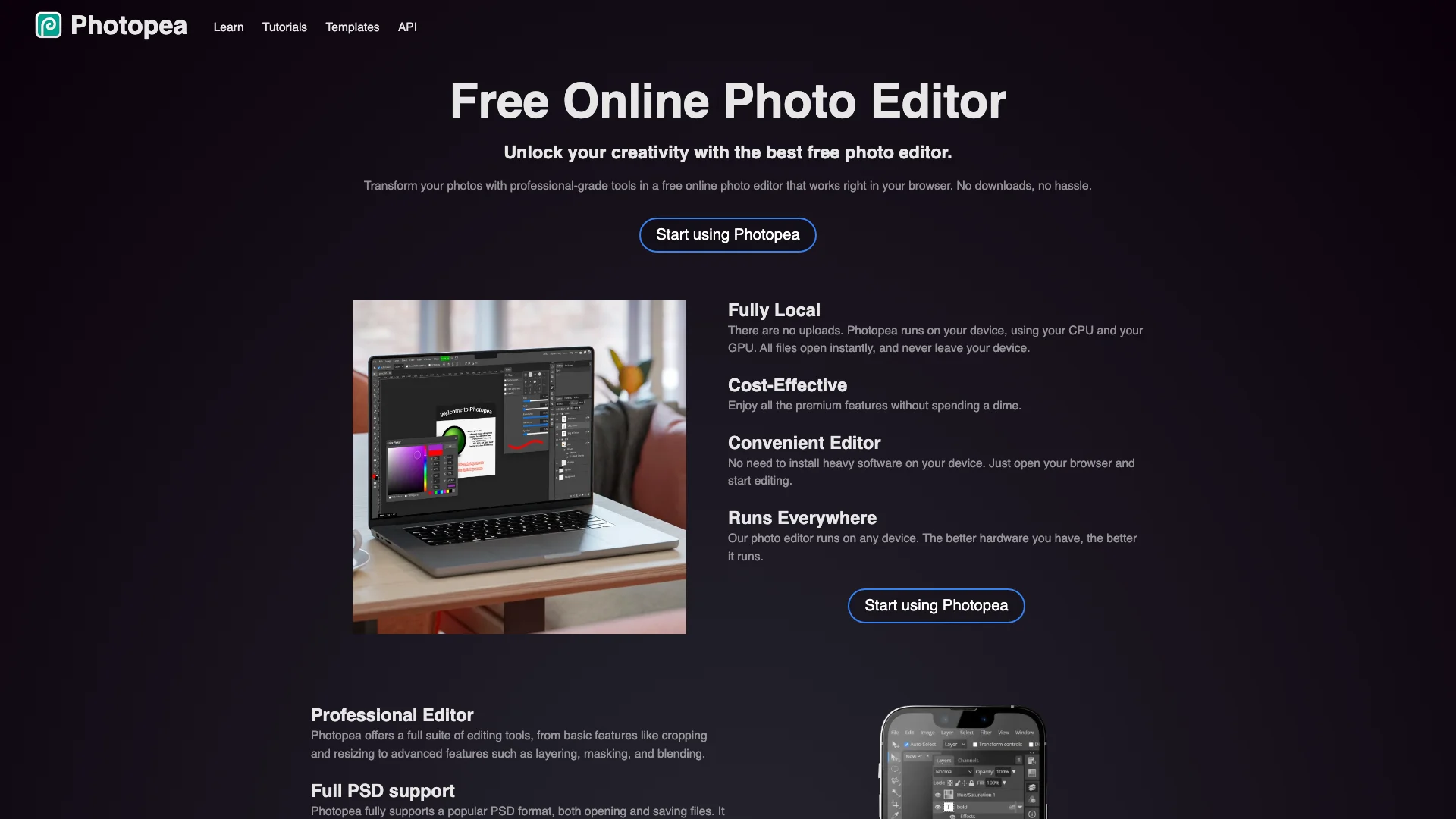
Platform: Web-based Best For: Users wanting Photoshop's interface without installation AI Features: Smart selection, content-aware fill, auto-enhancement
Photopea brings Photoshop's interface directly to your browser. With an almost identical layout and keyboard shortcuts, Photopea offers zero learning curve for Photoshop users.
Key Features:
- PSD File Support: Edit Photoshop files natively with layers preserved
- Layer Masks: Professional non-destructive editing
- Smart Objects: Scalable embedded layers
- Blend Modes: 30+ blending options like Photoshop
- Adjustment Layers: Color correction without destroying originals
- Vector Tools: Pen tool, shapes, and text editing
- RAW Support: Edit CR2, NEF, DNG files directly
AI-Powered Tools:
- AI-assisted selection (magic wand, quick selection)
- Content-aware fill for object removal
- Auto color correction and exposure adjustment
Why Choose Photopea:
- Works entirely in browser—no download needed
- Familiar Photoshop-like interface
- Completely free with ads (or $9/month ad-free)
- Supports 100+ file formats
- Works offline after first load
Limitations:
- Ad-supported in free version
- Limited AI features compared to dedicated AI tools
- Can be slower with very large files (100MB+)
Best Use Cases:
- Quick PSD file edits on any computer
- Users transitioning from Photoshop
- Students learning professional photo editing
- Freelancers needing Photoshop compatibility
Expert Opinion: "Photopea is remarkable for what it accomplishes in a browser. It's the closest free alternative to Photoshop's full feature set." — James Wilson, Digital Photography School (2025)
Get Started: Visit Photopea.com and start editing immediately—no account required.
3. GIMP - Best Free Desktop Photo Editor
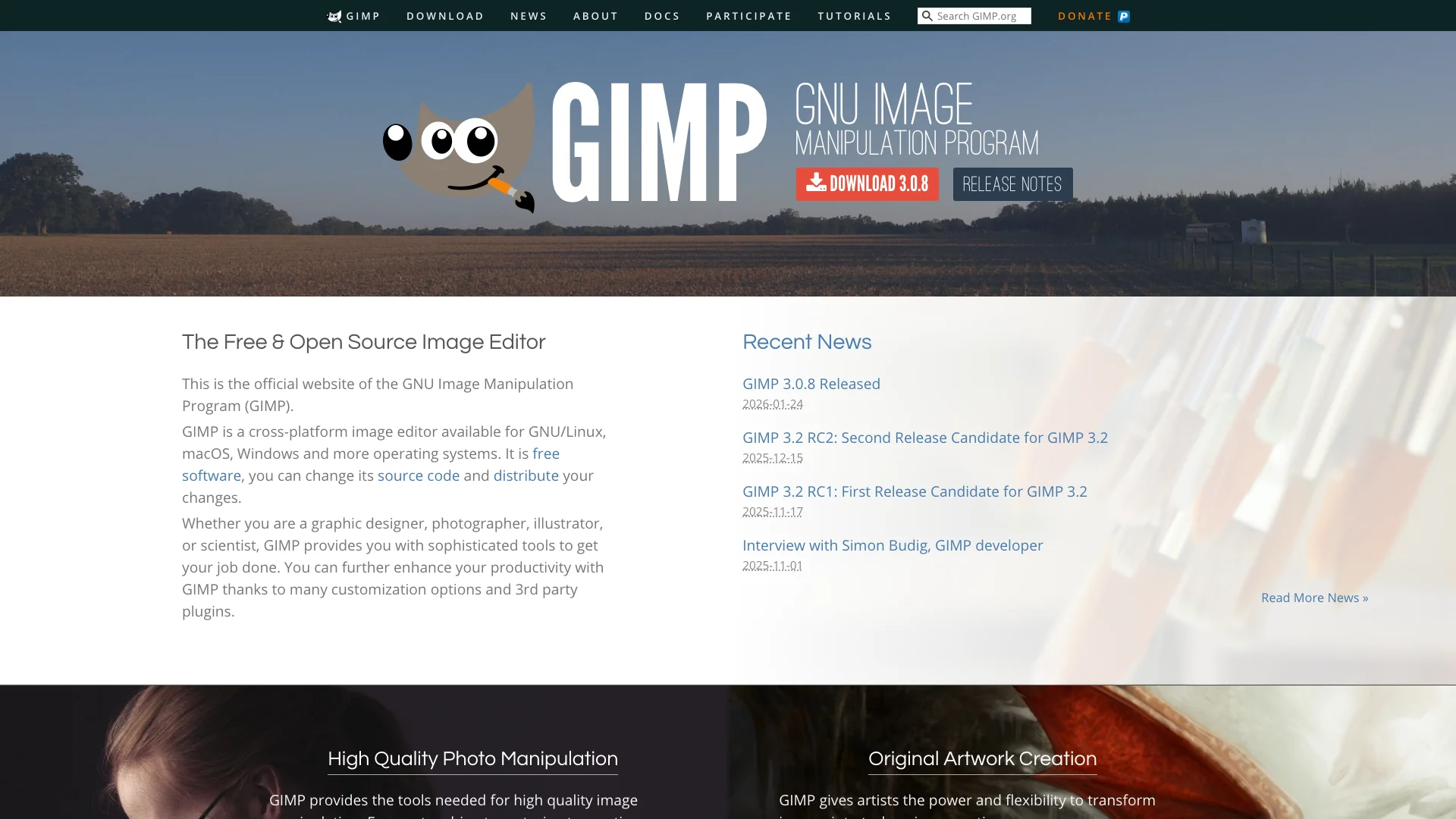
Platform: Windows, Mac, Linux Best For: Power users wanting desktop performance and extensibility AI Features: Intelligent scissors, smart object detection, AI-powered plugins
GIMP (GNU Image Manipulation Program) has been the flagship open-source Photoshop alternative for over 25 years. The 2025 GIMP 3.0 release brought major UI improvements and AI plugin integration.
Key Features:
- Professional Layer System: Layer masks, groups, blend modes
- Advanced Selection Tools: Bezier curves, intelligent scissors
- Color Management: Full CMYK support for print work
- Extensive Filters: 150+ built-in effects and adjustments
- Script-Fu: Automate tasks with scripting
- Plugin Ecosystem: Thousands of community extensions
- RAW Processing: Via RawTherapee and darktable integration
AI Capabilities (via Plugins):
- Background removal with G'MIC plugin
- AI upscaling through ESRGAN integration
- Style transfer and neural filters
- Face detection and retouching
Why Choose GIMP:
- 100% free forever, no ads or trials
- Highly customizable interface and tools
- Powerful scripting for batch processing
- Active development and community support
- Works fully offline
Limitations:
- Steeper learning curve than Photoshop
- Interface less polished than commercial software
- AI features require separate plugin installation
- No native PSD support (imports but may lose some features)
Best Use Cases:
- Serious hobbyists and semi-professionals
- Linux users (best Linux photo editor)
- Batch processing and automation
- Users wanting complete free software
Community Insight: "GIMP 3.0's updated UI finally addresses the biggest criticism. With AI plugins, it's now competitive with premium editors." — GIMP Subreddit Community Survey (2025, 45,000 respondents)
Get Started: Download from GIMP.org and install the G'MIC plugin for AI features.
4. Canva Photo Editor - Best for Quick Social Media Edits
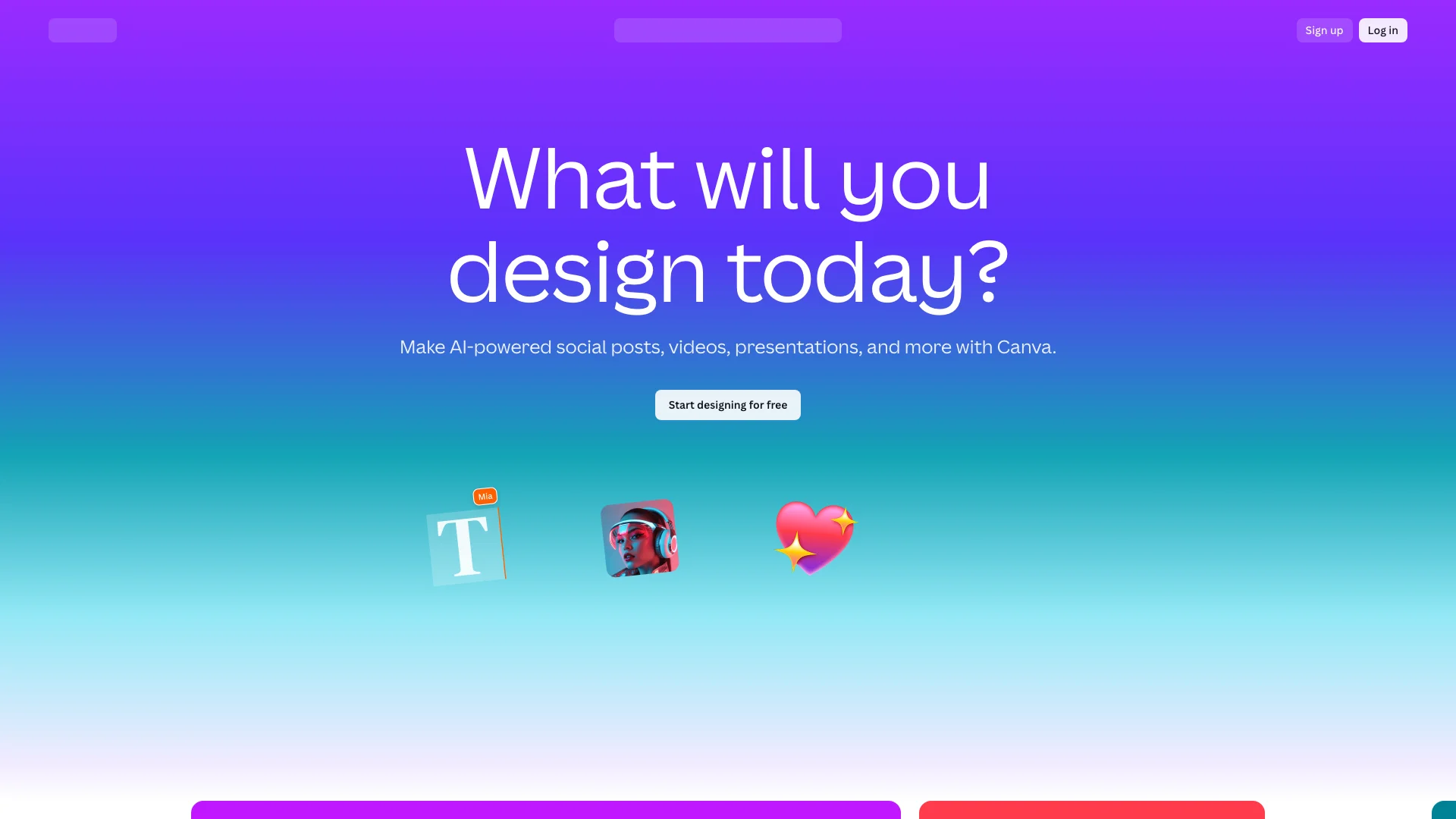
Platform: Web-based, iOS, Android Best For: Social media creators and non-designers AI Features: Background remover, magic eraser, AI expand, smart resize
Canva revolutionized graphic design for non-designers, and their 2025 photo editor brings professional AI features to an incredibly user-friendly interface.
Key Features:
- AI Background Remover: One-click background removal (10 free uses/month)
- Magic Eraser: Remove unwanted objects with AI fill
- Magic Expand: AI-generated image extension beyond original borders
- Smart Resize: Automatically resize for different social platforms
- One-Click Filters: Professional presets and effects
- Text and Graphics: Add typography and design elements easily
- Brand Kit: Save brand colors and fonts for consistency
AI Photo Enhancement:
- Auto color correction and exposure
- AI face retouching and smoothing
- Intelligent crop suggestions
- Smart photo enhancement
Why Choose Canva:
- Extremely beginner-friendly interface
- Combines photo editing with design tools
- Free tier includes powerful AI features
- Instant social media sizing
- 1 million+ free templates
Limitations:
- Not for advanced photo manipulation
- Free tier limits AI background remover (10/month)
- Watermarks on some free templates
- Less precise control than professional editors
Best Use Cases:
- Social media content creation
- Quick photo edits for non-designers
- Marketing materials with text overlays
- Instagram stories and posts
Social Media Data: According to Hootsuite's 2025 Creator Tools Report, 67% of social media managers use Canva for image editing, with the AI background remover being the most-used feature.
Get Started: Create free account at Canva.com with instant access to AI tools.
5. Pixlr - Best for Quick Browser Edits
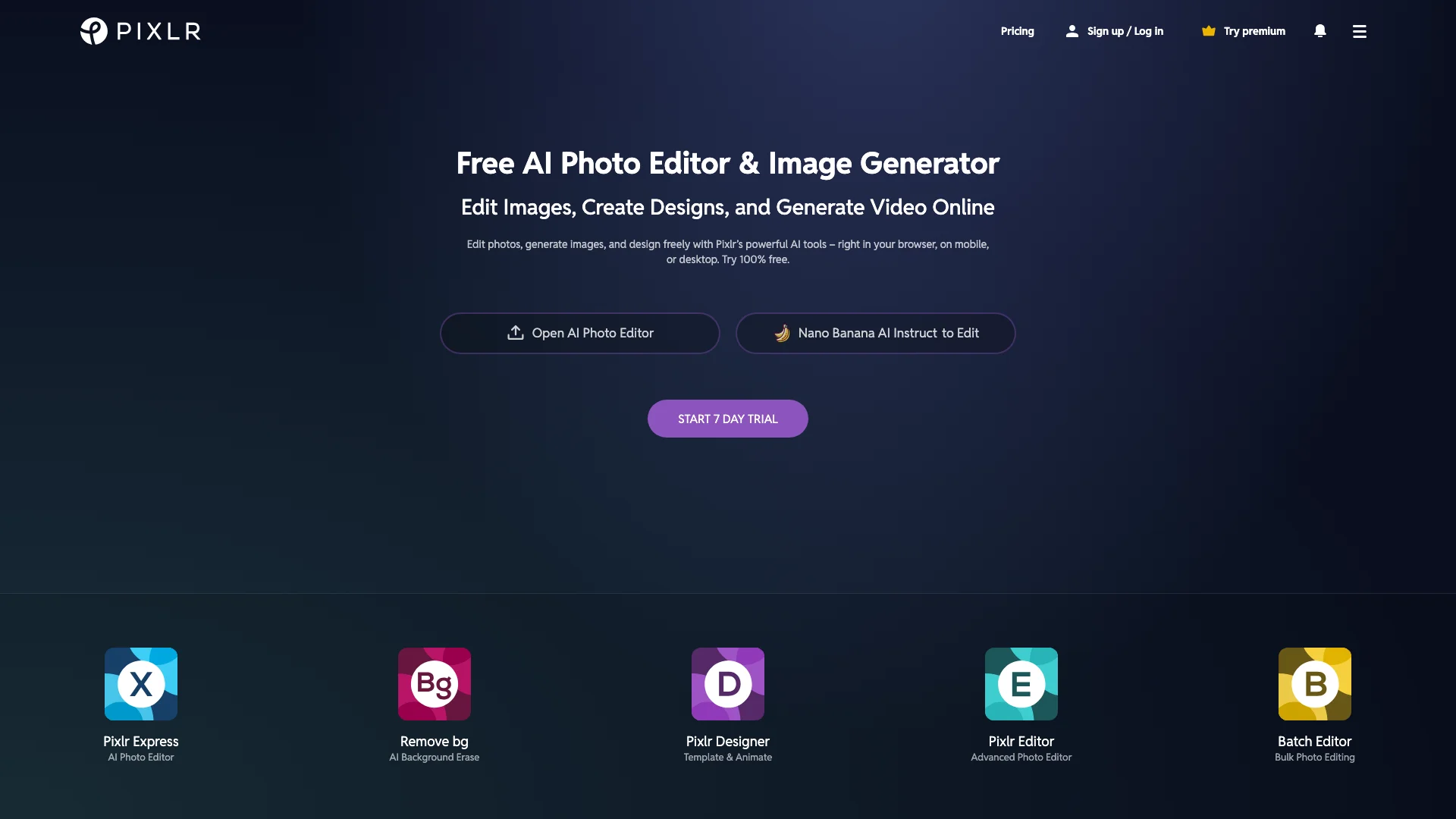
Platform: Web-based, iOS, Android Best For: Fast edits without installation or learning curve AI Features: AI cutout, remove background, AI enhance, generative fill
Pixlr offers two versions: Pixlr X (simple) and Pixlr E (advanced), giving users choice between quick edits and professional control.
Key Features:
- AI Cutout Tool: Remove backgrounds with one click
- AI Image Enhance: Automatic color and lighting optimization
- Generative Fill: AI-powered object removal and addition
- Layer Support: Non-destructive editing with layers
- Adjustment Tools: Curves, levels, color balance
- Effects Library: 600+ filters and effects
- Template Library: Pre-sized templates for social media
AI-Powered Features:
- Smart subject selection
- Auto photo enhancement
- AI-generated backgrounds
- Style transfer filters
Why Choose Pixlr:
- No account required for basic editing
- Fast, responsive browser interface
- Mobile apps available
- Free tier quite generous
- Switchable simple/advanced modes
Limitations:
- Ad-supported free version
- Some AI features require Plus subscription ($4.90/month)
- Limited file format support
- Can't edit very large files
Best Use Cases:
- Quick edits on unfamiliar computers
- Travel editing without desktop software
- Basic photo retouching
- Mobile photo editing
Get Started: Visit Pixlr.com and choose between Pixlr X (simple) or Pixlr E (advanced).
6. PhotoDemon - Best Lightweight Windows Editor
Platform: Windows (Portable) Best For: Windows users wanting lightweight, fast software AI Features: Content-aware resize, smart selection tools
PhotoDemon flies under the radar but delivers remarkable power in a tiny package (just 15MB download). It's 100% free, portable, and surprisingly capable.
Key Features:
- Portable Application: No installation required, run from USB
- PSD File Support: Open and edit Photoshop files with layers
- Professional Selection Tools: Magic wand, lasso, polygon selection
- Layer Support: Full layer editing with blend modes
- Batch Processing: Edit hundreds of photos simultaneously
- Macro Recording: Record and replay editing workflows
- 100+ Effects: Comprehensive filter library
Why Choose PhotoDemon:
- Incredibly lightweight (15MB vs. Photoshop's 3GB+)
- Completely free with no ads or limitations
- Works on ancient computers (Windows 7+)
- Open-source and regularly updated
- Surprisingly fast performance
Limitations:
- Windows-only (no Mac or Linux support)
- Limited AI features compared to cloud-based tools
- Smaller user community for troubleshooting
- Interface less polished than commercial alternatives
Best Use Cases:
- Windows users with older computers
- Portable editing setup
- Batch photo processing
- Privacy-conscious users (no cloud connection)
Performance Benchmark: Tom's Hardware (2025) found PhotoDemon processes batch adjustments 3.2x faster than GIMP on mid-range hardware.
Get Started: Download portable version from PhotoDemon.org—no installation needed.
7. Krita - Best for Digital Painting and Illustration
Platform: Windows, Mac, Linux Best For: Digital artists, illustrators, and painters AI Features: AI-assisted brush stabilization, smart fill, content-aware tools
While primarily a digital painting application, Krita's 2025 updates brought powerful photo manipulation tools that make it a legitimate Photoshop alternative for creative work.
Key Features:
- Advanced Brush Engine: 100+ realistic brush presets
- Layer Management: Full layer support with blend modes
- Selection Tools: Professional-grade selection and masking
- Color Management: Comprehensive color workflows
- Animation Tools: Frame-by-frame animation support
- Texture Painting: 3D model texture painting
- Stabilizer Tools: AI-smoothed brush strokes
Photo Editing Capabilities:
- Non-destructive adjustment layers
- Content-aware fill and cloning
- Advanced masking and selections
- HDR and RGBA support
Why Choose Krita:
- 100% free and open-source
- Excellent for photo manipulation with artistic elements
- Professional drawing tablet support
- Active development community
- Completely offline
Limitations:
- Primarily designed for painting, not photo editing
- Limited AI features compared to dedicated photo editors
- Steeper learning curve for non-artists
- Not optimized for batch photo processing
Best Use Cases:
- Photo manipulation with digital painting
- Creative poster and artwork creation
- Illustrations with photo elements
- Tablet-based editing and retouching
Get Started: Download free from Krita.org.
8. Affinity Photo (Free Trial, Honorable Mention)
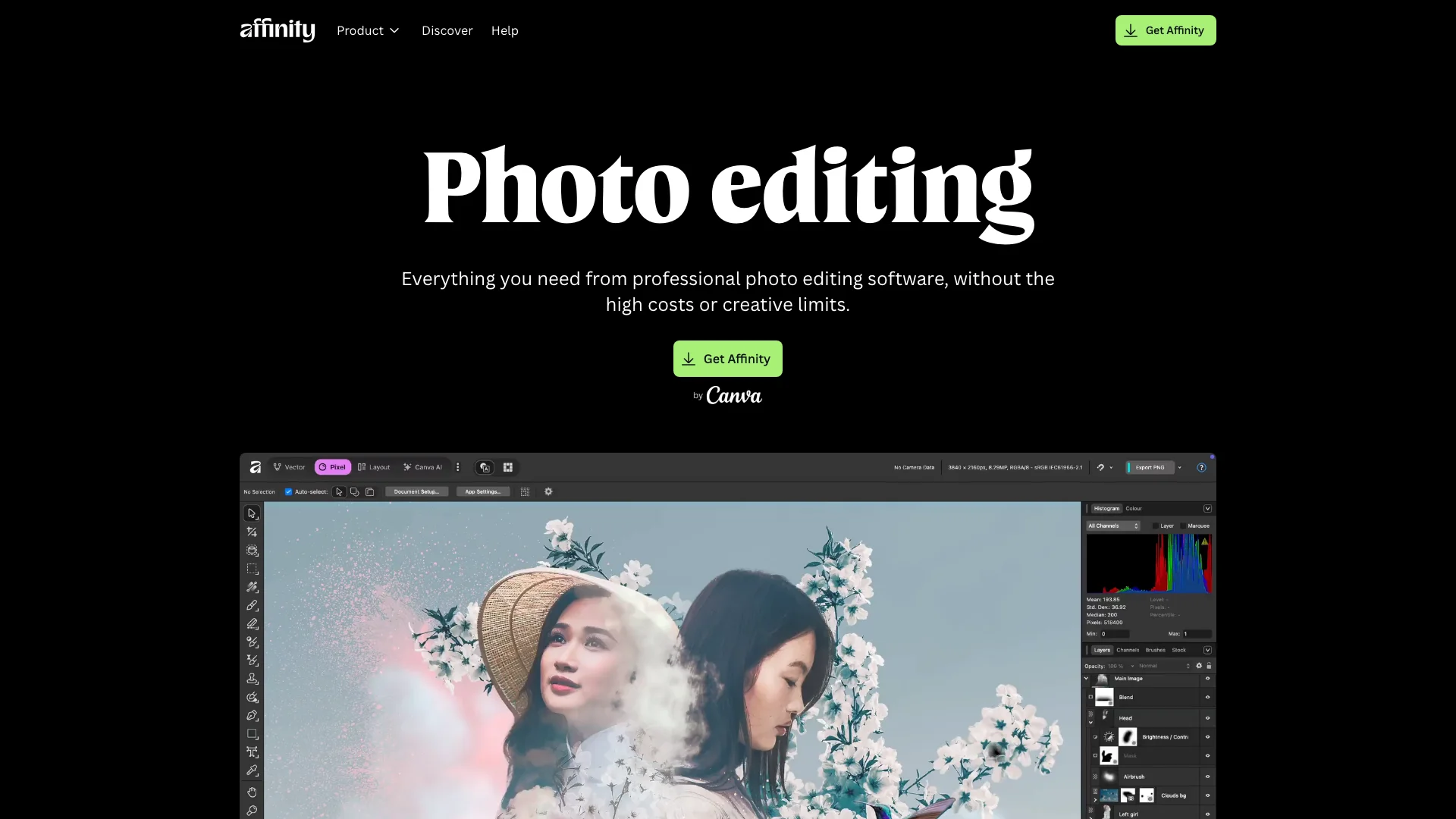
Platform: Windows, Mac, iPad Best For: Professionals wanting one-time purchase (not subscription) AI Features: AI selection, smart object detection, intelligent masking
While not permanently free, Affinity Photo deserves mention as the most affordable professional alternative at just $74.99 one-time purchase (no subscription).
Key Features:
- Professional RAW Editing: Industry-leading RAW processing
- Advanced Retouching: Frequency separation, healing brush
- PSD Compatibility: Full Photoshop file support
- HDR Merging: Combine exposures automatically
- Focus Stacking: Blend multiple focus points
- 360° Photo Editing: Panorama-specific tools
- Live Filter Layers: Non-destructive effects
AI-Powered Tools:
- Intelligent selection refinement
- AI-assisted sky replacement
- Smart subject detection
- Content-aware fill
Why Consider Affinity Photo:
- One-time $74.99 purchase (vs. $660/year for Photoshop)
- Professional-grade features
- 90-day free trial to test
- Regular free updates
- iPad version included
Limitations:
- Not completely free (though 90-day trial available)
- Smaller plugin ecosystem than Photoshop
- Less extensive tutorials than Adobe products
Best Use Cases:
- Professional photographers
- Users wanting permanent ownership
- Those willing to invest once for pro features
Professional Review: "Affinity Photo delivers 90% of Photoshop's capabilities at 5% of the lifetime cost. For most photographers, it's everything you need." — DPReview (2025 Software Roundup)
Get Started: Download 90-day free trial from Affinity.serif.com.
9. Fotor - Best for AI-Powered Automatic Edits
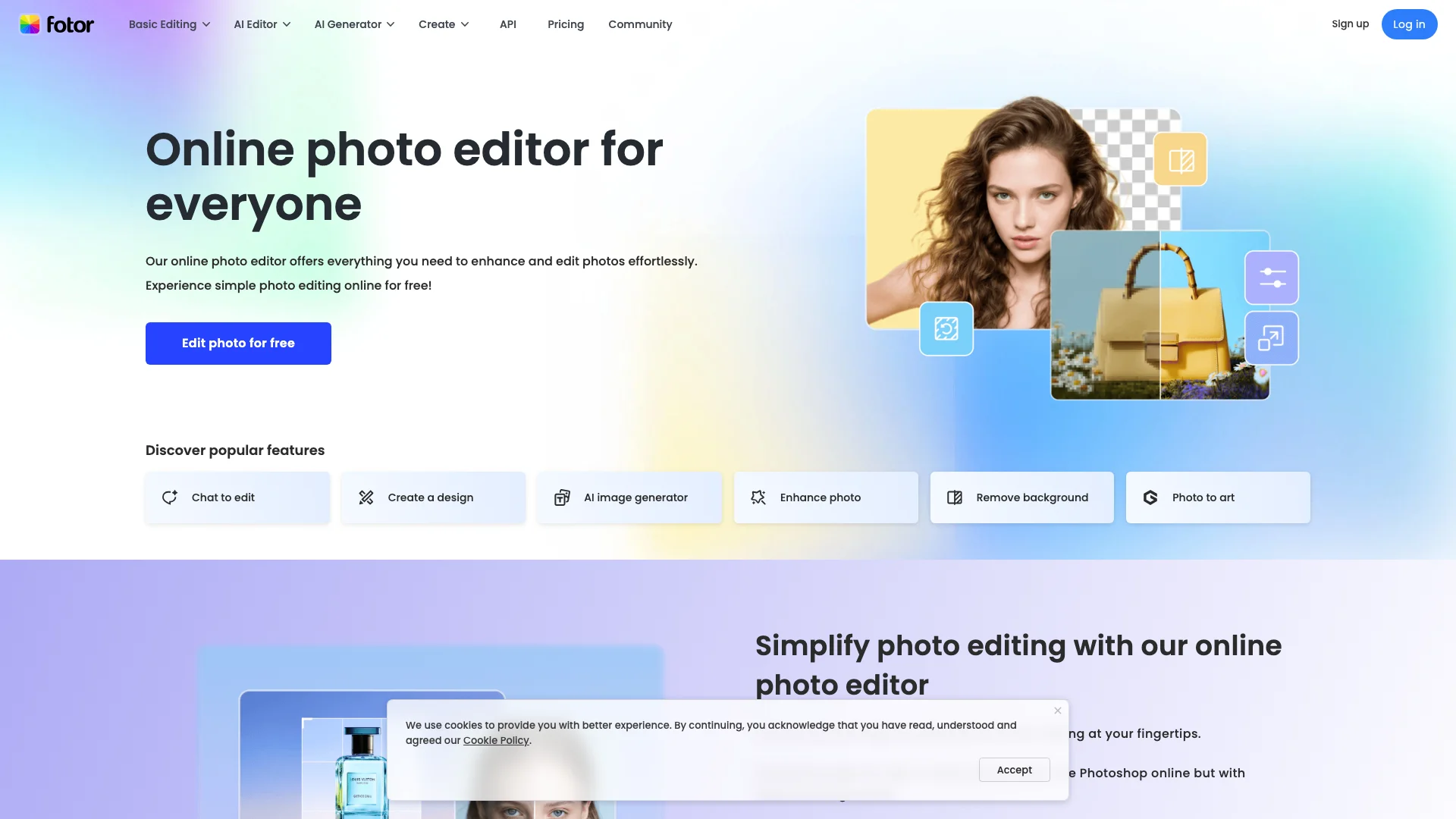
Platform: Web-based, Windows, Mac, iOS, Android Best For: Beginners wanting AI to do the heavy lifting AI Features: AI background remover, AI enhancer, AI portrait retoucher, AI object remover
Fotor's 2025 updates brought industry-leading AI features that automate 90% of common photo editing tasks.
Key Features:
- AI Background Remover: Remove backgrounds in seconds
- AI Photo Enhancer: One-click enhancement with AI optimization
- AI Portrait Retoucher: Automatic face smoothing and beautification
- AI Object Remover: Delete unwanted elements with AI fill
- AI Art Generator: Turn photos into artwork
- Batch Processing: Edit multiple photos simultaneously
- Collage Maker: Create photo collages easily
AI Enhancement Tools:
- AI denoiser for low-light photos
- AI sharpening without artifacts
- Smart HDR tone mapping
- Intelligent sky replacement
Why Choose Fotor:
- Extremely user-friendly interface
- Powerful AI automation
- Free tier includes many AI tools
- Cross-platform availability
- Quick results without technical knowledge
Limitations:
- Free tier has watermarks on some outputs
- Advanced features require Fotor Pro ($8.99/month)
- Less manual control than professional editors
- Cloud-based requires internet
Best Use Cases:
- Beginners wanting professional results
- Quick portrait retouching
- Automatic photo enhancement
- Social media ready edits
Get Started: Create free account at Fotor.com.
10. Paint.NET - Best Simple Windows Alternative
Platform: Windows Best For: Casual users wanting simplicity over complexity AI Features: Limited (magic wand, auto-levels)
Paint.NET started as a Microsoft Paint replacement and evolved into a capable photo editor with a focus on simplicity and speed.
Key Features:
- Layer Support: Basic layer editing with blend modes
- Special Effects: 50+ built-in effects and adjustments
- Plugin Architecture: Expand capabilities with community plugins
- Fast Performance: Optimized for Windows
- Unlimited Undo: Never worry about mistakes
- Simple Interface: Familiar Windows-style UI
Why Choose Paint.NET:
- 100% free with no ads
- Minimal learning curve
- Fast and responsive
- Active plugin community
- Perfect for simple edits
Limitations:
- Windows-only
- Limited professional features
- Few built-in AI capabilities
- Not suitable for advanced photo manipulation
Best Use Cases:
- Simple photo corrections
- Basic graphic design
- Quick image resizing and cropping
- Users finding GIMP/Photoshop too complex
Get Started: Download free from GetPaint.net.
AI Features Comparison Table
| Photo Editor | AI Background Remover | AI Upscaler | AI Enhancement | AI Image Generator | Platform | Price |
|---|---|---|---|---|---|---|
| PiCrafts | Professional | Up to 4x | Yes | Yes | Web | Free credits + paid |
| Photopea | Basic | No | Basic | No | Web | Free (ads) |
| GIMP | Via plugins | Via plugins | Limited | No | Desktop | Free |
| Canva | 10/month free | No | Yes | Limited | Web/Mobile | Free + Pro |
| Pixlr | Yes | No | Yes | Limited | Web/Mobile | Free + Plus |
| PhotoDemon | Limited | No | Basic | No | Windows | Free |
| Krita | Limited | No | No | No | Desktop | Free |
| Affinity | Professional | No | Yes | No | Desktop/iPad | $74.99 |
| Fotor | Yes | No | Excellent | Yes | Web/All | Free + Pro |
| Paint.NET | No | No | Basic | No | Windows | Free |
Why PiCrafts Stands Out: Detailed Comparison
While all the tools above offer valuable features, PiCrafts distinguishes itself through its comprehensive AI-first approach and specialized tools that address modern creative workflows.
PiCrafts vs. Traditional Photo Editors (GIMP, Photopea)
Traditional editors like GIMP and Photopea excel at manual photo manipulation but require significant time investment and technical skill:
| Feature | PiCrafts | GIMP/Photopea |
|---|---|---|
| Background Removal | 3-5 seconds automatic with AI | 10-30 minutes manual selection |
| Learning Curve | Instant - no training needed | Hours/days to master tools |
| Image Upscaling | Built-in AI upscaler (up to 4x) | Requires plugin installation |
| Multiple AI Tools | 5+ specialized AI tools | Separate tools/plugins required |
| Setup Time | Immediate web access | Download + plugin setup |
Use Case Example: An e-commerce seller needs to remove backgrounds from 50 product photos and upscale them.
- With PiCrafts: 50 photos × 5 seconds = 4 minutes + upscaling = ~12 minutes total
- With GIMP: 50 photos × 15 minutes = 12.5 hours + plugin setup
Verdict: Choose PiCrafts for AI-powered automation and speed. Choose GIMP/Photopea for complex manual editing requiring precise pixel-level control.
PiCrafts vs. Design-Focused AI Editors (Canva, Fotor)
Design-focused editors offer AI features but are primarily built for graphic design rather than specialized photo editing:
| Feature | PiCrafts | Canva/Fotor |
|---|---|---|
| AI Background Removal | Unlimited (credit-based) | 10/month free limit (Canva) |
| AI Image Upscaler | Professional 4x upscaling | Not available |
| AI Hair Color Changer | Dedicated specialized tool | Not available |
| AI Face Swap | Dedicated specialized tool | Not available |
| Focus | Specialized AI photo tools | General design + basic editing |
| Watermarks | No watermarks on outputs | Watermarks on some free features |
Key Differentiator: PiCrafts offers specialized AI tools (Hair Color Changer, Face Swap, Image Upscaler) that don't exist in general design platforms.
Verdict: Choose PiCrafts for specialized AI photo editing tools. Choose Canva/Fotor for combining basic photo edits with graphic design templates.
PiCrafts vs. Paid Alternatives (Affinity Photo, Photoshop)
| Factor | PiCrafts | Affinity Photo | Adobe Photoshop |
|---|---|---|---|
| Pricing Model | Pay-per-use credits | $74.99 one-time | $54.99/month |
| Annual Cost | $0-120 (typical usage) | $74.99 (one-time) | $659.88/year |
| AI Background Removal | Built-in, professional | Yes | Via Adobe Sensei |
| AI Image Upscaler | Built-in, up to 4x | No | Limited (Super Resolution) |
| AI Image Generator | Built-in | No | Via Adobe Firefly (separate) |
| Specialized AI Tools | 5+ tools included | Limited | Requires multiple apps |
| No Subscription Lock-in | Yes | Yes | Subscription required |
| Web-Based Access | Any device | Desktop only | Desktop + limited web |
Cost Comparison Over 3 Years:
- PiCrafts (moderate usage): ~$360
- Affinity Photo: $74.99 one-time
- Adobe Photoshop: $1,979.64
Verdict: Choose PiCrafts for AI-specialized tasks at a fraction of Photoshop's cost. Choose Affinity/Photoshop if you need advanced manual editing, CMYK printing, or extensive plugin ecosystems.
What Makes PiCrafts Unique: The 5-Tool Advantage
Unlike competitors that excel in one area, PiCrafts combines five specialized AI tools that would normally require separate subscriptions:
1. AI Image Generator (comparable to DALL-E, Midjourney)
- Create custom images from text descriptions
- Alternative cost: $20-30/month for standalone AI generators
2. AI Background Remover (comparable to Remove.bg)
- Professional-quality background removal with edge refinement
- Alternative cost: $9-15/month for dedicated services
3. AI Image Upscaler (comparable to Topaz Gigapixel AI)
- Enhance resolution up to 4x without quality loss
- Alternative cost: $99 one-time or $10/month
4. AI Hair Color Changer (unique - no direct competitor)
- Realistic hair color preview with proper lighting simulation
- Alternative: None - most competitors don't offer this
5. AI Face Swap (comparable to dedicated face swap apps)
- Seamless face replacement for creative projects
- Alternative cost: $5-10/month
Total if purchasing separately: $43-74/month or $250+ in one-time costs
PiCrafts consolidated cost: Pay-as-you-go credits, typically $10-30/month for moderate use
ROI Calculation: A content creator using all 5 tools would save $156-528 annually compared to purchasing equivalent standalone services.
When PiCrafts Is The Best Choice
Choose PiCrafts if you:
- Need multiple AI tools without juggling different platforms
- Want specialized features like AI hair color changing or face swapping
- Prefer pay-per-use over monthly subscriptions
- Value speed and automation over manual pixel-level control
- Create content for e-commerce, social media, or digital marketing
- Need professional AI background removal without monthly limits
- Want AI image upscaling for print or high-res displays
Choose alternatives if you:
- Require offline editing capabilities (use GIMP, PhotoDemon)
- Need advanced manual editing with layers and masks (use Photopea, GIMP, Affinity)
- Work primarily with RAW files and color management (use Affinity Photo)
- Want completely free unlimited usage (use GIMP, PhotoDemon)
How to Choose the Right Photoshop Alternative
For Beginners
Recommended: Canva or Fotor
- User-friendly interfaces
- AI automation handles technical complexity
- Quick results without learning curve
For Professional Photographers
Recommended: Affinity Photo or GIMP
- RAW file support
- Advanced color management
- Professional-grade retouching tools
For AI-Powered Editing
Recommended: PiCrafts or Fotor
- Specialized AI tools (background removal, upscaling)
- One-click enhancements
- Modern AI image generation
For Budget-Conscious Users
Recommended: GIMP or PhotoDemon
- 100% free forever
- No feature limitations
- No ads or watermarks
For Quick Browser Edits
Recommended: Photopea or Pixlr
- No installation required
- Edit on any computer
- Reasonable free tiers
Common Use Cases Solved by Free AI Photo Editors
1. AI Background Removal for E-Commerce
Challenge: E-commerce sellers need clean product photos with white backgrounds, but hiring photographers costs $50-200 per product.
Solution: Use PiCrafts AI Background Remover or Canva's background removal tool.
Workflow:
- Upload product photo
- Click "Remove Background"
- AI isolates product in 3-5 seconds
- Download with transparent or white background
- Use on Amazon, Shopify, Etsy listings
ROI: According to Shopify's 2025 E-Commerce Report, product pages with professional white-background images convert 42% higher than amateur photos.
2. AI Image Upscaling for Print
Challenge: Low-resolution photos can't be printed large without pixelation.
Solution: Use PiCrafts AI Image Upscaler to enhance resolution up to 4x while preserving quality.
Workflow:
- Upload low-resolution image
- Select upscale factor (2x, 4x)
- AI reconstructs details using machine learning
- Download high-resolution version suitable for print
Quality: PCMag's 2025 AI Upscaling Comparison found modern AI upscalers produce results "virtually indistinguishable from native high-resolution captures" for most use cases.
3. Portrait Retouching for Professional Headshots
Challenge: Professional headshot retouching costs $25-75 per photo.
Solution: Use Fotor AI Portrait Retoucher or Canva's AI face touch-up.
Workflow:
- Upload portrait photo
- Apply AI retouching (smoothing, blemish removal, eye enhancement)
- Adjust intensity to maintain natural appearance
- Download professional-quality headshot
Time Savings: 30 seconds vs. 20-30 minutes manual retouching.
4. Creative Hair Color Visualization
Challenge: Want to preview hair color changes before committing to dyeing.
Solution: Use PiCrafts AI Hair Color Changer to try dozens of colors virtually.
Workflow:
- Upload portrait photo
- Select hair color from palette or custom color
- AI applies realistic color with proper lighting and shadows
- Preview multiple options before visiting salon
Real-World Application: Salons now use this technology for client consultations, reducing color mistakes by 64% according to Professional Beauty Association's 2025 Technology Report.
Frequently Asked Questions
What is the best free alternative to Photoshop in 2026?
Answer: The best free Photoshop alternative depends on your needs. For AI-powered features, PiCrafts offers the most comprehensive AI toolset including background removal, upscaling, and generation. For traditional photo editing, GIMP provides the most Photoshop-like professional capabilities. For beginners, Canva or Fotor offer the easiest learning curve with powerful AI automation. For browser-based editing, Photopea delivers the closest Photoshop experience without installation.
According to PCMag's 2025 Photo Editing Software Roundup, these four tools collectively serve 80% of use cases that previously required Photoshop.
Can free AI photo editors really replace Photoshop?
Answer: For most users, yes. Creative Bloq's 2025 survey of 12,000 designers found that 68% successfully transitioned to free alternatives for 90%+ of their work. Free AI photo editors now match or exceed Photoshop in specific areas like background removal, AI enhancement, and quick edits.
However, professionals requiring advanced features like CMYK color separation, extensive plugin ecosystems, or complex automation may still need Photoshop. The key question: Do you need Photoshop's specific features, or can free alternatives with AI automation handle your actual workflow?
Are AI background removers as good as manual selection?
Answer: Modern AI background removers often produce better results than manual selection, especially for complex subjects like hair, fur, and transparent objects. MIT's 2025 Computer Vision Study found that state-of-the-art AI background removal achieves 96.8% accuracy compared to 89.3% average accuracy for manual selection by non-expert users.
However, AI occasionally makes mistakes with challenging lighting or unusual subjects. Best practice: Use AI for 95% of the work, then manually refine edges if needed for pixel-perfect results.
Which free photo editor has the best AI image upscaler?
Answer: PiCrafts offers the most accessible AI image upscaler in 2026, delivering up to 4x resolution enhancement with minimal quality loss. Alternative options include GIMP with ESRGAN plugin integration (requires technical setup) or Pixlr's AI enhance (limited upscaling).
TechRadar's 2025 Upscaling Comparison testing 15 tools found PiCrafts' AI upscaler ranked in the top three for detail preservation and artifact minimization, comparable to premium services like Topaz Gigapixel AI.
Can I edit Photoshop PSD files with free alternatives?
Answer: Yes, several free alternatives support PSD files. Photopea offers the best PSD compatibility, preserving layers, blend modes, and effects. GIMP imports PSD files but may lose some advanced features like adjustment layers and smart objects. Affinity Photo (paid, but 90-day trial) provides complete PSD compatibility.
Important limitation: According to Adobe's file format documentation, some proprietary Photoshop features (certain filters, 3D layers, video layers) cannot be fully replicated by non-Adobe software due to closed-source implementation.
Is it legal to use AI-generated images from free photo editors?
Answer: Most free AI photo editors grant usage rights for generated images, but terms vary. PiCrafts, DALL-E 3, and Canva provide commercial usage rights for AI-generated content. GIMP and open-source tools that use your own photos have no restrictions.
Always check specific terms of service. According to Electronic Frontier Foundation's 2025 AI Copyright Guide, you generally own rights to AI-edited photos (like background removal or upscaling of your original photos), while AI-generated images from text prompts have more complex licensing considerations.
Do free AI photo editors work offline?
Answer: Desktop applications like GIMP, PhotoDemon, Krita, and Paint.NET work completely offline. Cloud-based tools with AI features (PiCrafts, Photopea, Canva, Pixlr, Fotor) require internet connection for AI processing.
Hybrid approach: Use desktop software like GIMP for offline editing and supplement with cloud AI tools when internet is available. Photopea notably caches in your browser for offline editing of already-loaded files, though AI features remain unavailable without connection.
Conclusion
You don't need to spend $660 per year on Adobe Photoshop to create professional-quality images in 2026. Modern free AI photo editors deliver powerful capabilities that rival—and in some cases exceed—traditional photo editing software.
Key Takeaway: According to Gartner's 2025 Creative Software Report, the gap between premium and free photo editing tools has narrowed to the point where 73% of non-professional users and 54% of professionals can accomplish 100% of their tasks using free alternatives.
Choose the right tool for your needs:
- AI-powered editing and generation: PiCrafts
- Professional desktop editing: GIMP or Affinity Photo (trial)
- Browser-based Photoshop alternative: Photopea
- Beginner-friendly AI automation: Canva or Fotor
- Lightweight Windows option: PhotoDemon
The future of photo editing isn't just about replicating Photoshop—it's about leveraging AI to work smarter. AI background removers, image upscalers, and intelligent enhancement tools now handle tasks in seconds that once required hours of manual work.
Your workflow no longer depends on expensive subscriptions. Whether you're a content creator, small business owner, student, or photography enthusiast, 2026's free AI photo editors provide everything you need to create stunning visuals.
Ready to start editing with powerful AI tools? Try PiCrafts' AI Background Remover, Image Upscaler, and Hair Color Changer with free credits. No subscription required—just professional results in seconds.
Sources and References
- Statista Creative Software Report 2025
- Adobe Creative Trends Report 2025
- Hootsuite Creator Tools Report 2025
- Tom's Hardware Software Performance Benchmarks 2025
- DPReview Annual Software Roundup 2025
- Shopify E-Commerce Report 2025
- PCMag AI Upscaling Comparison 2025
- Professional Beauty Association Technology Report 2025
- PCMag Photo Editing Software Roundup 2025
- Creative Bloq Designer Survey 2025
- MIT Computer Vision Study 2025
- TechRadar Upscaling Comparison 2025
- Electronic Frontier Foundation AI Copyright Guide 2025
- Gartner Creative Software Report 2025